How to Take Screenshots That Help Support Check Game Issues
If you get stuck in PLAY777, see an unusual screen, or do not understand a feature, take screenshots that clearly show your login status, the game screen, any error message, and the steps you took. Use the same login method and the same device environment when possible so support can tell where the problem started.
Which screenshots should you take first so support can understand quickly?
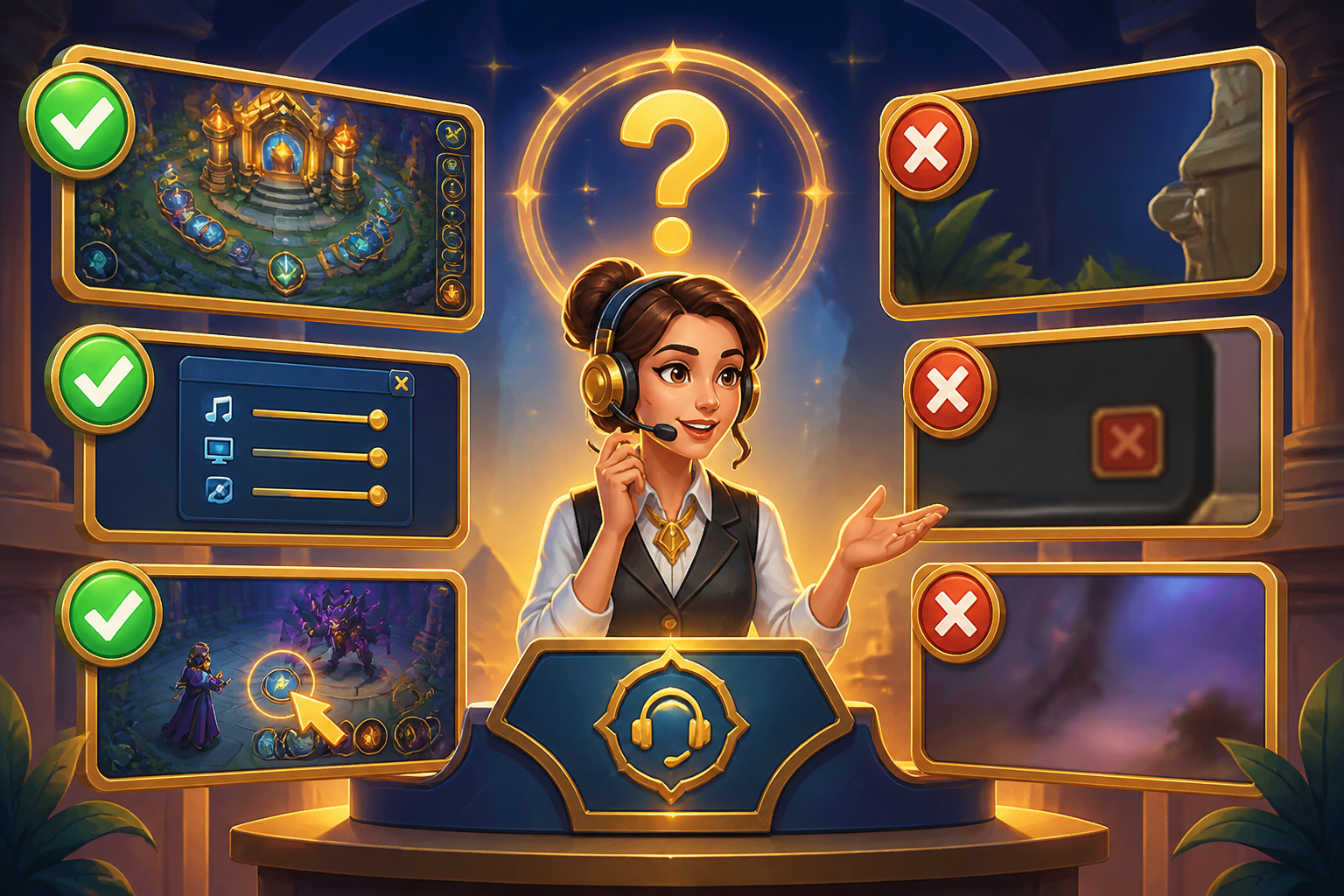
The most useful set usually includes three kinds of screenshots: the screen where you got stuck, the screen before you entered the game, and the account or member information page. Together, these let support check whether you were logged in, whether you entered the correct game entry point, and whether the issue happened before login or inside the game.
If the problem appears when entering from /game/ or /game/play/{id}, keep both the previous page and the page where the error appeared so support can compare your path.
- Stuck screen: include buttons, pop-ups, loading screens, or blank pages
- Before-entry screen: show where you came from before entering the game
- Account screen: helps confirm which account you are currently using
What screen details should never be left out?
Support usually needs the exact error message, the page URL or page title, and a visible game name. If you crop too tightly, it may no longer be clear whether the screen is from the member area, the game lobby, or a specific game page, which often leads to follow-up requests.
If the screen shows login status, age confirmation, member information, or a favorites list, keep that too. PLAY777’s game lobby requires login, and the game entry flow also follows the existing login and age-confirmation process.
- Keep the full error text visible; do not crop it too tightly
- Make sure the game name or page title can be seen
- If login prompts, age confirmation, or member info appear, include them too
How should you capture login or account issues most effectively?
If login fails, the account changes unexpectedly, or you suspect you are not in your original account, first capture the login screen, then capture the member center page that is currently open. PLAY777’s login screen has LINE, Facebook, and Yahoo buttons, so support needs to know which method you actually used and whether you kept using the same account and the same login method.
If the problem started after changing phones or clearing browser data, include the device and browser screen as well. A phone browser can add a shortcut to the home screen, but that shortcut does not mean login is permanently skipped.
- Login page: show which login method you used
- Member center: show the account information page
- Device info: include the phone model or browser name if possible
If you do not understand a game control, what should you capture?
For button functions, rule tips, or problems finding favorites or categories, it is best to capture the full game screen and the explanation area. The site already has game categories and a favorites feature, but since the article should not assume a button is always in one fixed place, a full screenshot is more helpful than a close-up for identifying which version or page you are seeing.
If the issue starts after a help tip appears, keep the pop-up, the main screen behind it, and the state before you clicked. That makes it easier for support to see which step caused the problem.
- A full screen is more useful than a cropped image
- Capture both the pop-up and the main page behind it
- Show the difference before and after you clicked
How should you organize screenshots before sending them to support?
It is best to arrange screenshots in order, from before entering to the moment the error appears, and to add a short note explaining what you did, what you saw, and where you are stuck now. If several images relate to the same issue, keep them in time order so support can reconstruct the process more easily.
If you have confirmed that you are using the Traditional Chinese, English, Thai, Vietnamese, or Indonesian interface, mention that in your note as well, because the interface text may differ across language versions.
- Sort by step instead of uploading in random order
- Add one short explanation beside each image
- State which interface language you are using
Frequently asked questions
Is one screenshot enough?
If you are only asking what a button does, one complete screen may be enough. But if the issue involves login, a redirect, or an error message, adding at least one screenshot from the previous step is better.
Do I need to capture the full URL?
Not always, but if the page title is not obvious, seeing the URL or page title usually helps support tell whether you are in the member center, the game lobby, or a game page.
What should I pay special attention to when taking screenshots?
Do not capture only part of the screen, do not cut off the error message, and try to keep the buttons, title, and full page visible so support can match your operation flow.
What if I am not sure whether it is the same account?
First capture the login page and the member center page, and explain which login method you used. This helps support confirm which account you are connected to.
Prepared and translated with AI assistance. Versions, offer conditions and interfaces may differ. Refer to the in-game help and member page.