Organize Your PLAY777 Games with Names and Favorites
PLAY777 already offers game categories and a favorites feature, making it easier to sort the games you play often and return to them quickly. This guide focuses on using game names, categories, and the member center to manage your list, while noting which details should always be checked on the current page.
Use game names first to separate your regular picks
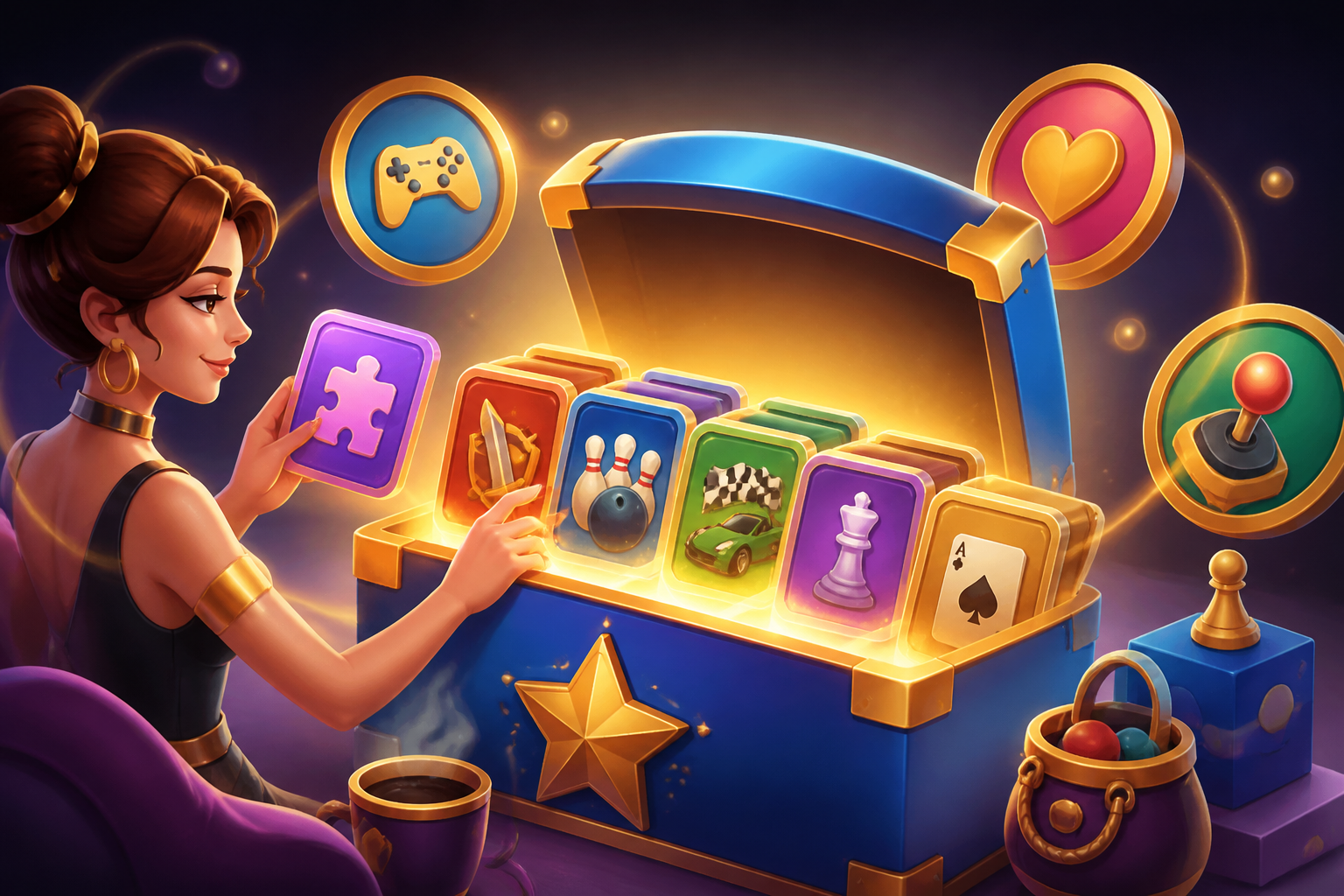
If you open multiple games often on PLAY777, the most practical approach is to remember each game name first, then organize them with the favorites feature. Since the site already provides game categories and favorites, you can mark the games you know well and want to revisit later, so you do not have to search for them from scratch each time. This makes it easier to separate games you want to try from games you play regularly, and it reduces the time spent browsing the lobby again and again.
- Confirm the game name first so you do not mix together titles with similar names.
- Save your regular games as favorites so you can return to the same group more easily next time.
- If you compare different games often, start by checking similar categories before deciding what to favorite.
How to use the favorites feature effectively
The value of the favorites feature is not in giving extra rewards, but in helping you build your own game list. It is best to treat favorites as a regular-play list: do not open every game all the time, and keep only the ones you truly return to. Since the site only confirms that a favorites feature exists, this article should not assume a specific button location or path; if the interface changes, use the screen you see at that moment as your reference.
- Only favorite games you really plan to return to, so the list stays cleaner.
- If you do not yet understand a game’s rules, do not rush to favorite it; confirm the name and content first.
- Interface placement may change, so if you cannot find something, go back to the game lobby or category page and check again.
Managing your list together with the member center
The member center /member/ lets you check your member information, which is useful for confirming your current account status before you organize favorites and regular games again. If you use VIP, check the benefits directly on the current member and purchase pages, because daily game coins, prices, validity periods, and collection conditions are not fixed. When organizing your game list, the key is not to chase more resources first, but to align your account information with the games you usually play, so you do not lose track of your preferences after switching devices or logging in again.
- Make sure you are logged into the same account before reorganizing your favorites.
- If you have VIP, check the current page directly instead of relying on old assumptions about the benefits.
- Keeping favorites and member information managed separately can reduce confusion later.
What to watch for when logging in or changing devices
PLAY777’s game lobby /game/ requires login, and the game entry /game/play/{id} also follows the site’s existing login and age confirmation process. So if you change phones, clear your browser data, or use a different login method, your original favorites and usage habits may need to be checked again. The current login interface includes LINE, Facebook, and Yahoo buttons, but actual availability should still be based on the screen you see and the service’s response. To avoid account confusion, it is best to keep using the same account and login method.
- Before changing devices, remember which login method you originally used.
- If the login screen shows different buttons, use the currently available method to log in first.
- If your favorites list looks inconsistent, first check whether you are signed in to a different account.
Making your regular games easier to find on mobile
If you often play on your phone, you can also add the site to your home screen to reach PLAY777 faster. However, the menu name shown by your browser may differ, and adding a shortcut to the home screen does not mean you can stay logged in forever, so you still need to keep your login habit. The most practical setup is to use the home screen shortcut as the entry point and the site’s favorites as your list; using both together makes it faster to find the games you play regularly.
- A home screen shortcut is good for quick access, but it does not automatically keep your account logged in.
- Favorites are for organizing games, while shortcuts reduce the steps needed to open the site.
- If you switch devices often, regularly confirm that your account and favorites still match.
Frequently asked questions
What can PLAY777’s favorites feature help me do?
It mainly helps you gather the games you play often in one place, so you can quickly return to the same set later. It is useful for managing your personal list.
If I change phones, will my favorites stay the same automatically?
Seeing the same favorites depends on entering the site with the same account and login method. After switching devices, it is best to confirm your account first and then check whether the favorites match.
Do I need to read the rules before favoriting a game?
It is recommended. Since different games may have different rules and features, confirming the game name and instructions first makes it less likely that you will mix up the content.
Does VIP change the favorites feature?
At present, VIP is only confirmed as an optional service that affects daily game coin benefits. The favorites feature itself is only confirmed to exist, and any other differences should be checked on the current page.
Prepared and translated with AI assistance. Versions, offer conditions and interfaces may differ. Refer to the in-game help and member page.