After Claiming Game Coins, the Screen Didn’t Update: What to Gather First and How to Contact PLAY777
If the screen does not update right after you claim game coins, do not keep clicking or repeat the same step. PLAY777 game coins are for game use only, the member center lets you check member information, and both the game lobby and game entry require login. Gather your account, login method, page details, device, and timing first, then confirm through the on-site screen and customer service reply.
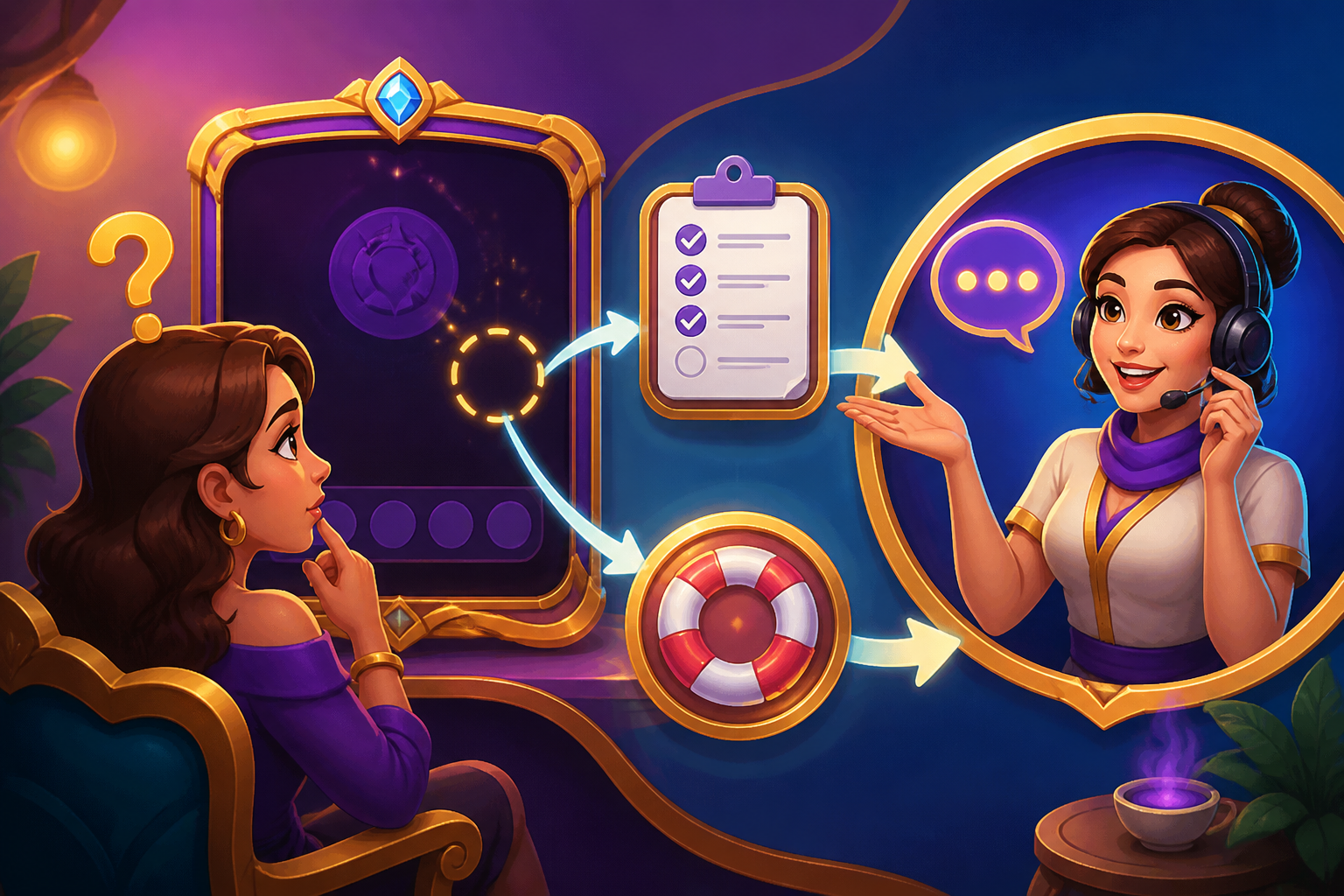
If the screen does not change, first check whether it is a login state or a delayed display
The PLAY777 game lobby requires login, and the game entry also follows the site’s existing login and age confirmation process. If nothing seems to change after claiming, first make sure you are still using the same account and the same login method, so you do not mistake a different login state for a failed claim.
Some browser or mobile pages may not have updated yet. Start by checking your member information in the member center, then go back to the game lobby or game entry and compare what you see. Do not rely on only one screen.
- Confirm that it is still the original account
- Confirm that the login method is the same, such as the same social login button
- Check the member center first, then return to the game lobby to compare
What information to organize so support can check it faster
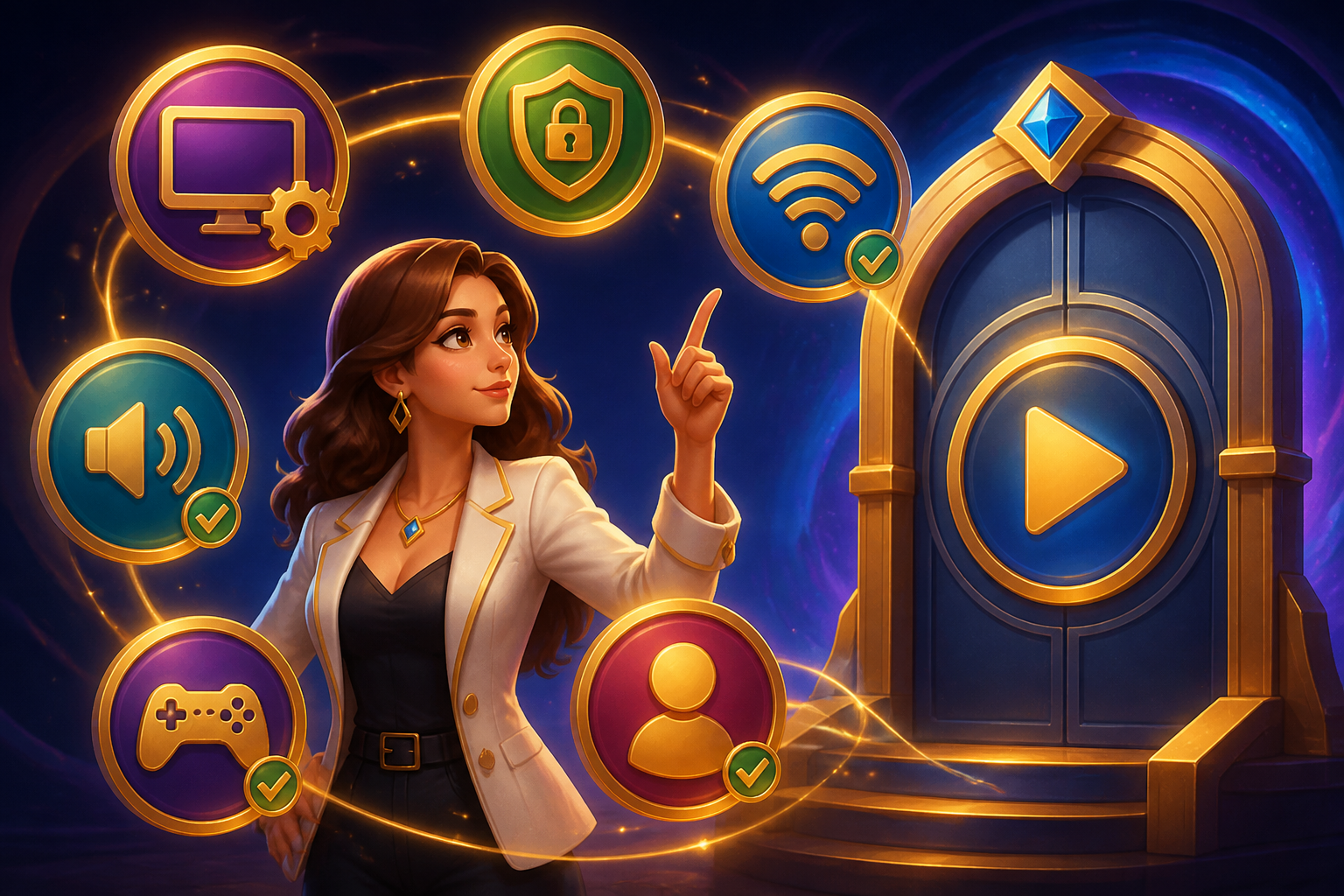
Break the issue into three parts: which page you claimed from, which screen did not update afterward, and what device and browser you used at the time. PLAY777 offers Traditional Chinese, English, Thai, Vietnamese, and Indonesian interfaces. If the screen changes after switching languages, note that too.
If you can, record the page names before and after claiming, any changes in member information, and whether you refreshed the page or logged in again. Since the free coin amount, daily reset time, and exact button positions are not publicly listed, describe only what you actually saw instead of guessing the numbers.
- Account name and login method
- Which page the issue happened on: member center, game lobby, or game entry
- Device, browser, and language version
- Text differences seen before and after claiming
How to describe the problem clearly when asking for help on the site
Start with a short sequence: when you claimed, whether you refreshed afterward, and what you still saw after refreshing. Because game coins are for game use only, the key point is whether they appear correctly in member information or on the game screen, not whether they can be cashed out or changed into something else.
If you logged in through LINE, Facebook, or Yahoo, say which one you used. The site says the actual availability of those login buttons depends on the screen and the service reply, so the most important thing is to keep the information you can see at that moment and let customer service verify it using your account and process.
- Explain the steps in order, without adding too many guesses at once
- Clearly state the login button and account you used
- Include the page status you actually saw
If you are on a mobile phone, add these environment details too
On mobile, you can add the site to your home screen from a browser, but a shortcut does not mean you will never need to log in again. So if the screen does not update, also check whether a shortcut, cache, or an old tab is showing outdated content. If you entered through a home screen icon, mention that as well.
Menu names vary by browser, so it is enough to give the browser brand and roughly which version you use. That is enough to help determine whether the issue is only a display problem.
- Whether you entered from a home screen shortcut
- Whether you refreshed or logged in again
- Which browser you are using
If you still cannot find the cause, what to do next
Do not repeat the same claim process over and over, or it may become harder to compare later. You can go back to the member center and check the member information again, then re-enter the game lobby after the page syncs normally.
If it still does not update, send all the information you prepared to site support at once. With complete details, the issue is usually easier to handle than simply saying it did not update. PLAY777 has already ended cash, USDT, and valuable prize redemption, so the main question here is whether the account and game coin display are normal, not any redemption process.
- Stop repeatedly clicking the same process
- Return to the member center and check again
- Organize everything and then ask for help
Frequently asked questions
If it did not update after claiming, does that definitely mean it failed?
Not necessarily. First confirm whether it is the same account and the same login method, and whether the member center or game screen is only delayed in syncing.
What should I give customer service first?
Your account or login method, the page where it happened, your device and browser, what you saw before and after claiming, and whether you refreshed or logged in again.
After installing a home screen shortcut on mobile, do I still need to log in again?
Possibly. A shortcut does not mean you will permanently avoid login, so if the screen does not update, you still need to confirm the login state.
Can I switch to another language and check again?
Yes. The site has a multilingual interface, but after switching, please note the actual page and text you see so they can be compared.
Prepared and translated with AI assistance. Versions, offer conditions and interfaces may differ. Refer to the in-game help and member page.